
How to use Screenshot Copy Paste
Set it up once, in about a minute. After that, hold one button on any screen and draw over the text you want to copy.
Open the app
Read and accept the Terms and Privacy Policy on the first screen.
Turn on one shortcut
The volume button or your phone's assistant gesture.Set the app as your phone's assistant. Follow the steps below.
Hold, then draw
On any screen, use your shortcut and draw over text to copy it, or around anything to crop it.
Choose how you open it
You only need one of these. You can turn on both if you like.
🔊 Volume button
Hold Volume Up (or Volume Down) for half a second. Works on almost every phone, and a quick press still changes the volume.
Set it up ↓ Alternative🤖 Assistant gesture
Hold the Power or Home button, or swipe up from a bottom corner, the way you would open your phone's assistant.
Set it up ↓Turn on the Volume Button Trigger
In the app, tap Turn On on the Volume Button Trigger card and accept the short explanation. The app then shows these steps; tap Next to see each one, then Open Settings to go to your phone's Accessibility settings. Then:
Open installed apps
Tap Installed apps. On some phones it's called Downloaded apps or Downloaded services.
Find the app
Tap Screenshot Copy paste. It shows Off for now.
Switch it on
Turn on the Screenshot Copy paste switch.
Allow it
Android asks you to confirm. Tap Allow, then go back to the app.
Set it as your phone's assistant
In the app, tap Set on the Set as Default Assistant card. The app shows these steps too; tap Next to see each one, then Open Settings. Then:
Open Digital assistant app
Tap Digital assistant app. On some phones it's called Assist app or Device assistance app.
Tap the default assistant
Tap Default digital assistant app. It shows Google or None for now.
Choose the app
Pick Screenshot Copy paste from the list.
Confirm
Android asks you to confirm. Tap OK, then go back to the app.
Allow "Display over other apps"
On some phones (often Xiaomi, Redmi, Oppo, Vivo, Realme) the editor can only open on top of other apps with this permission. Once a shortcut is on, the app shows a popup asking for it.
Tap Allow in the popup
The app opens the right settings page for you.
Find the app (if a list shows)
If you see a list of apps, tap Screenshot Copy paste.
Switch it on
Turn on Allow display over other apps, then go back.
Copy text: just draw over it
Open the editor with your shortcut. Then run your finger over the words you want. They turn green, and you can copy them right away.
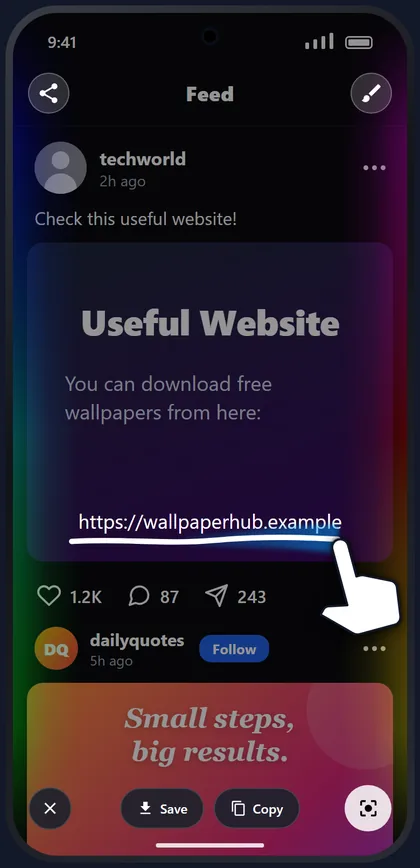
1. Draw a line over the text
Swipe across the words you want, like underlining them. One line, several lines: both work.
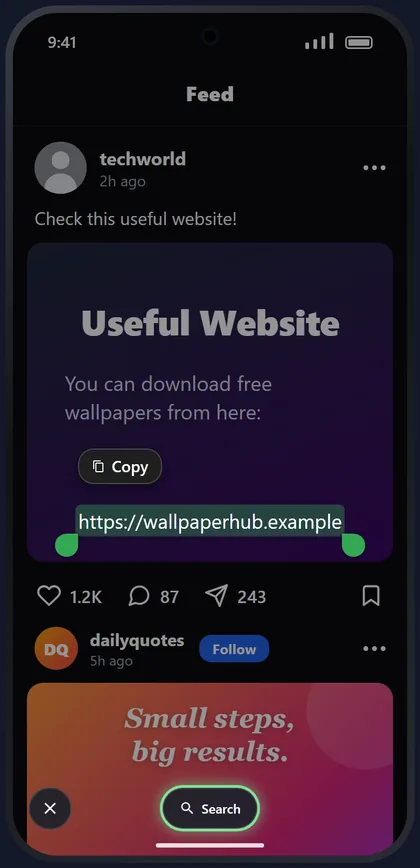
2. Tap Copy, then paste
Drag the green handles to select more or less. Tap Copy, then long-press any text box (a chat, a note, a search bar) and tap Paste. Or tap Search to look the words up.
| ✏️ Draw a line over text | Those words are selected (green) |
| ⭕ Draw a circle around anything | A crop box is made around it |
| ➖ Draw a line where there is no text | A crop box is made over that area |
| 🟢 Drag the green handles | Select more or fewer words |
| ✕ Tap the X | Close the editor (nothing is saved) |
Crop a picture: draw around it
Want part of the screen as an image, like a photo, a product or a chart? Circle it, then copy it and paste it wherever you like.
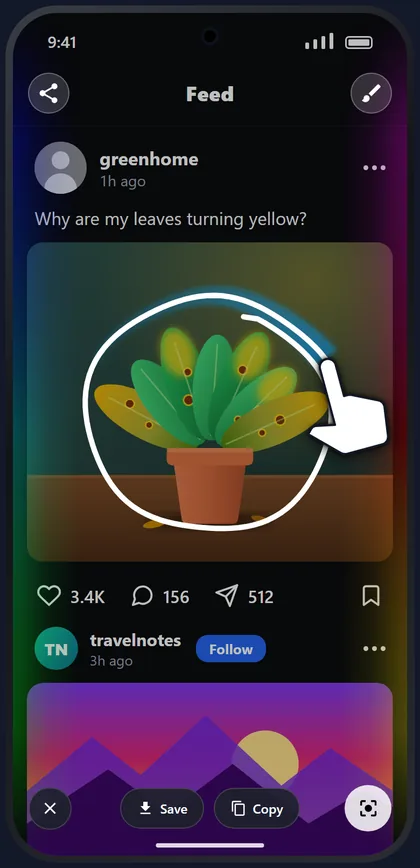
1. Draw around it
A rough circle is fine. The app turns it into a neat crop box.
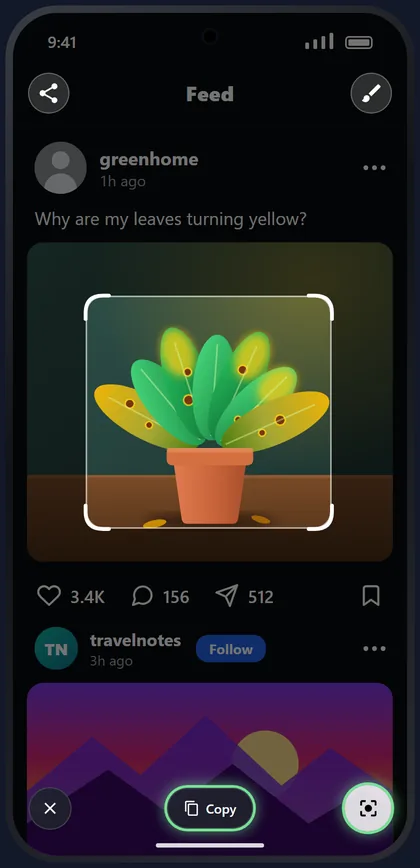
2. Adjust, then Copy
Drag the corners to resize. Tap Copy to copy just that part as an image, or the round Lens button to search for it.
3. Paste it anywhere
In a chat, an email, a note or an AI assistant: long-press the message box and tap Paste.
Where does a copied screenshot go?
Copying is for quick sharing: no extra photo lands in your gallery. Here is exactly what happens.
You tap Copy
The editor closes and you see "Copied to clipboard". If text was selected, the text is copied; otherwise the crop (or the whole screenshot) is copied as an image.
It waits on the clipboard
The image is kept as a temporary file inside the app's own private storage. It is not added to your gallery or photos, and other apps can only read it when you paste it.
You paste it
Long-press a message or text box and tap Paste, or pick it from your keyboard's clipboard. Works in chats, email, notes, documents and AI assistants that accept images.
| Button | What happens | In your gallery? |
|---|---|---|
| 📋 Copy (text) | The selected words go to the clipboard, ready to paste. | No |
| 📋 Copy (image) | The crop or screenshot goes to the clipboard as a picture. Its temporary file is deleted automatically after about 10 minutes. | No |
| 💾 Save | Saved as a PNG in your gallery, in Pictures › Screenshots. | Yes |
| 📤 Share | Opens your phone's share menu to send it straight to an app. | No |
| ✕ Close | Closes the editor. The screenshot is thrown away. | No |
Draw, point things out, and blur
Tap the brush button at the top right of the editor. A toolbar opens with everything below; tap the ✕ next to it to close it.
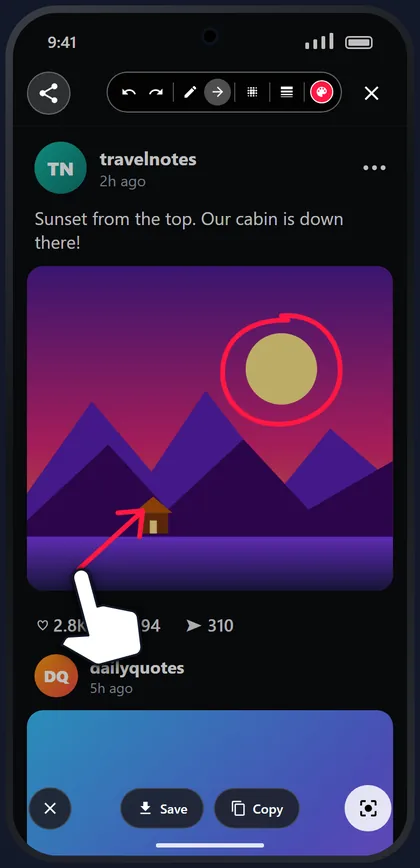
✏️ Pen & ➜ Arrow
Pen draws freehand: circle things, underline, write. Arrow draws a straight arrow from where you start to where you lift your finger.
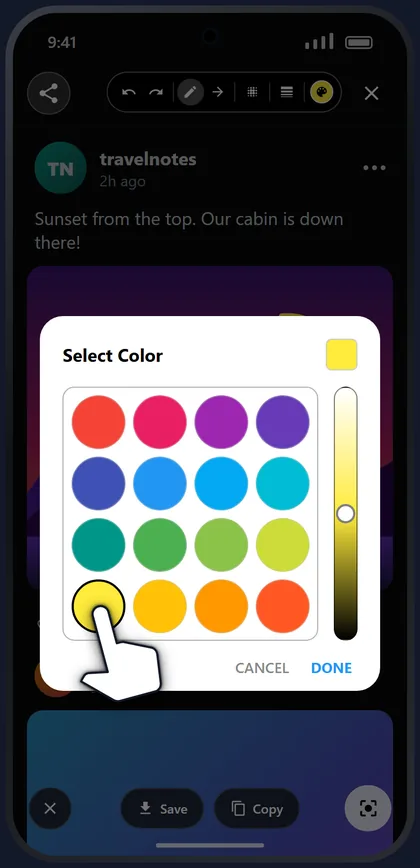
🎨 Color
Tap the round color button. Pick one of 48 colors, slide the bar on the right to make it lighter or darker, then tap DONE.
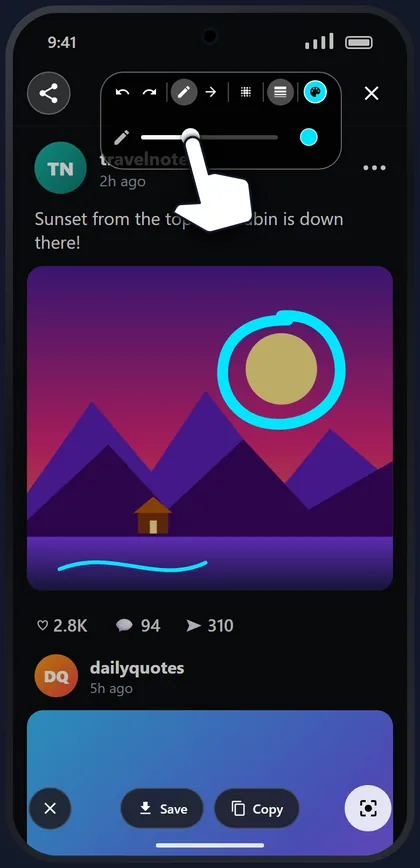
☰ Line size
Tap the line-size button and drag the slider. The dot on the right shows how thick your line will be.
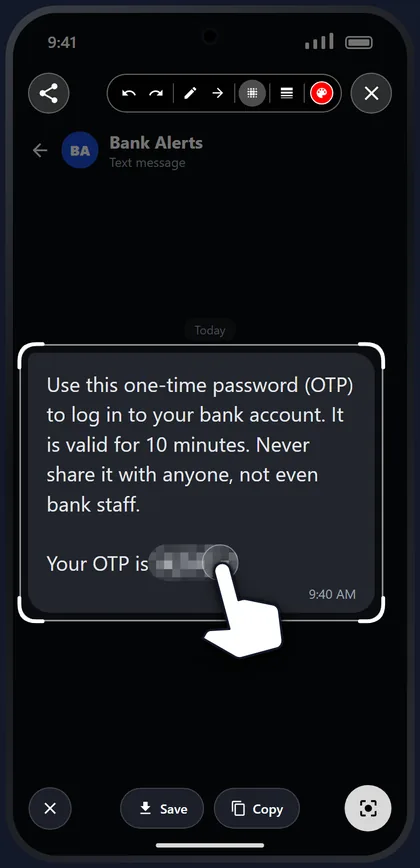
▦ Blur
Rub over codes, phone numbers, names or faces to hide them before you share. The line size also sets how wide the blur is.
Look things up with Lens and Search
Two buttons send what you picked to a search app on your phone, so you can find a product, identify a plant, translate a sign or learn more about a word.
🔍 Lens button (pictures)
The round white button at the bottom right.
- Optional: draw around the thing you want to search, so only that part is sent. Otherwise the whole screenshot is used, with any drawing on it.
- Tap the Lens button.
- The picture opens in Google Lens (part of the Google app), which shows matching products, places, plants, animals, or text you can translate or copy.
🔎 Search button (words)
Appears at the bottom after you select text.
- Draw over the words you want to look up.
- Tap Search.
- Your phone's search app opens with those words. If there isn't one, a web search opens in your browser.
Works with many languages, offline
Text is recognised on your phone, without internet. It also reads text written in English letters, such as Roman Urdu or Hinglish, and text that is tilted, sideways or upside down, as in a photo of a box.
Something not working?
Tap a question to see the answer.
Holding the volume button does nothing
- Make sure the Volume Button Trigger is on: in the app, its card shows a green tick. If it shows Turn On, follow Option A again.
- Hold the button a little longer, about half a second, until the phone buzzes.
- Check you're holding the right button: the card says which one, and Trigger Settings changes it.
- Just changed the volume? The shortcut pauses for 3 seconds after a quick press so it doesn't get in the way. Wait a moment and hold again.
It stopped working after an update or a restart
Android says "Restricted setting" when I try to turn it on
The editor doesn't open on top of other apps
Holding Power or Home opens Google instead
The copied text has a mistake
Are my screenshots uploaded anywhere?
Where do I find my User ID for support?
How do I turn the shortcuts off?
- Volume button: Settings → Accessibility → Installed apps → Screenshot Copy paste → switch off.
- Assistant: Settings → Apps → Default apps → Digital assistant app → choose another assistant or None.