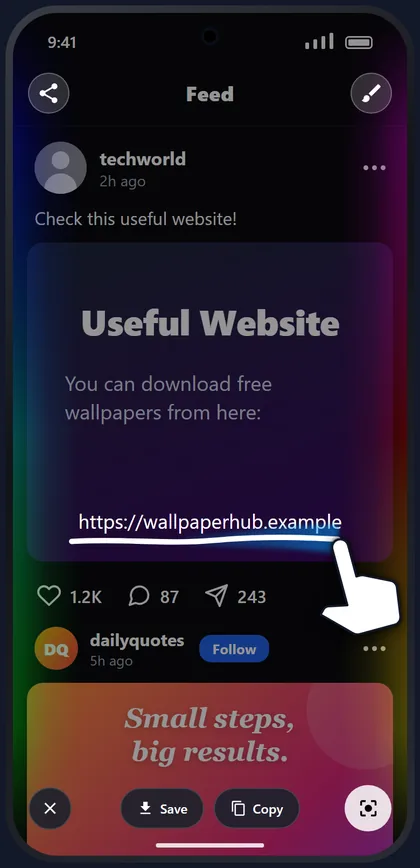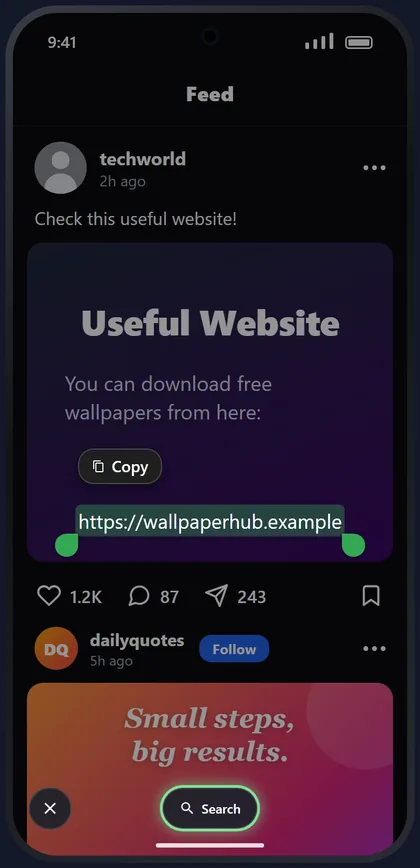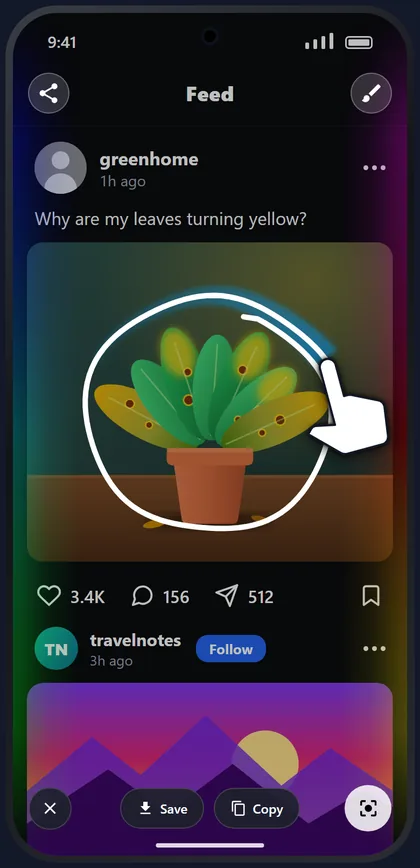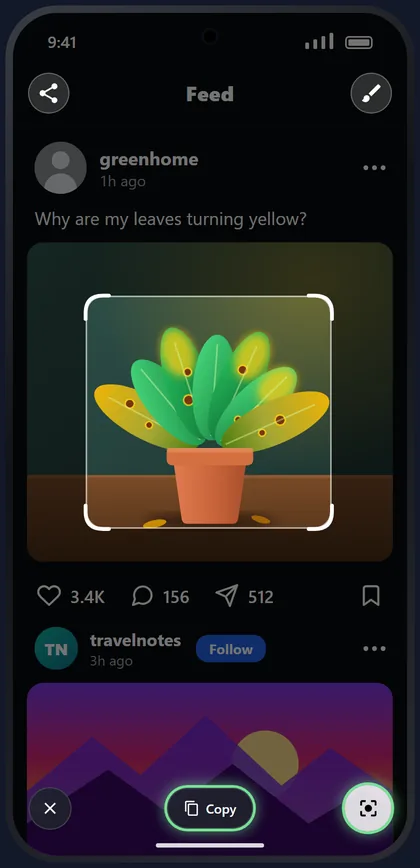
Hold a volume button on any screen,Hold the Power button on any screen, then draw over the text you want to copy, in English, Urdu, Hindi and many more languages. Draw around anything to crop it. Everything happens on your phone.
Screenshot Copy Paste is designed for modern Android users who want to grab information on their screen without tedious button combinations, manual cropping, or switching between different apps.
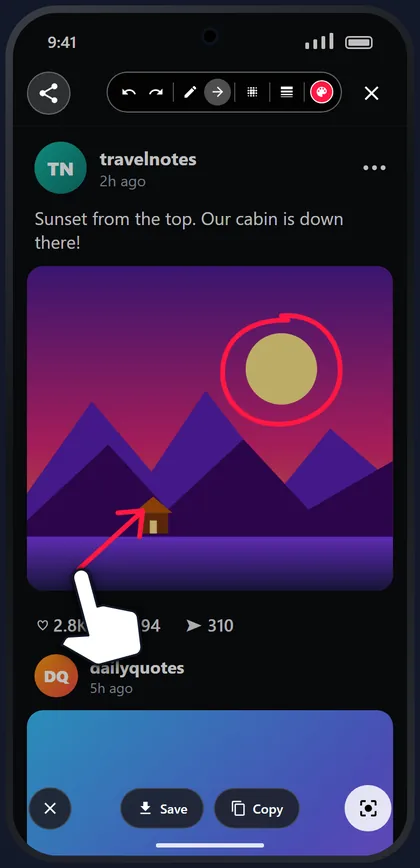
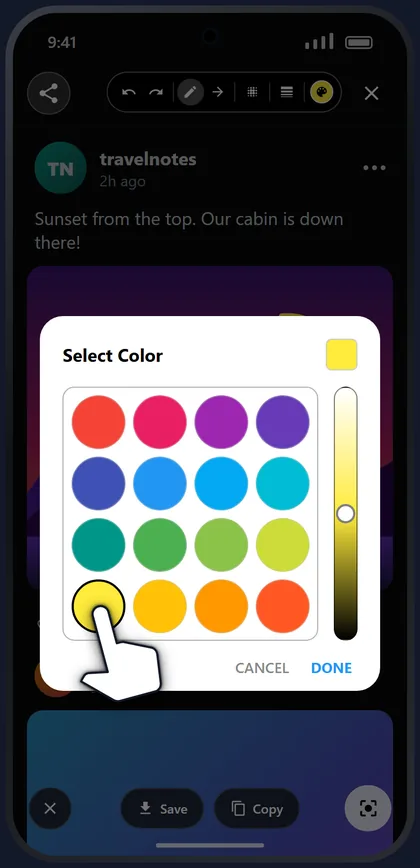
Turn on one shortcut: hold a volume button, or use your phone's assistant gesture (hold Power or Home, or swipe up from a corner).Set it as your phone's assistant, then hold Power or Home, or swipe up from a corner. Your screen freezes into a smart canvas where you can draw over text to copy it, draw around a picture to crop it, blur private details, draw arrows and notes, save to your gallery, or look it up with an image search app.
Text is recognised offline, on your phone, in English, Urdu, Hindi, Arabic, Persian, Bengali, Russian, Thai, Chinese, Japanese, Korean and more, even when it's tilted or upside down. Your screenshots are never uploaded.
Hold Volume Up or Volume Down over any app or game. Or use your phone's assistant gesture: hold Power or Home, or swipe up from a corner.
Set the app as your phone's assistant, then hold Power or Home, or swipe up from a corner, over any app or game.
Swipe across the words you want and tap Copy. Works with many languages, and copies on-screen text exactly as shown.
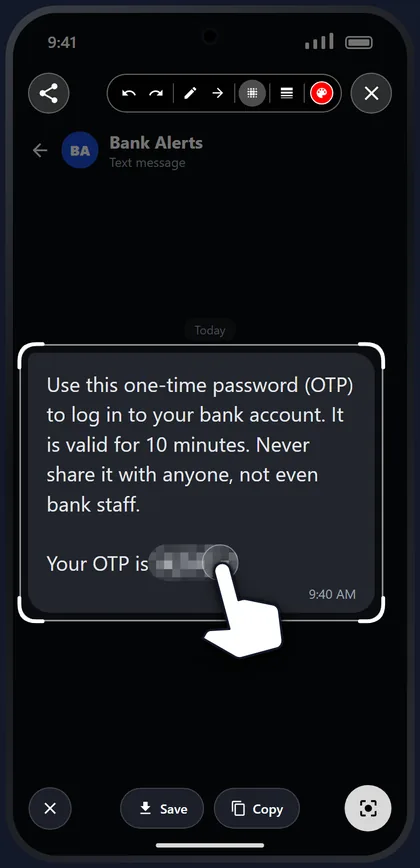
Protect your privacy! Blur passwords, OTPs, bank numbers, or personal chats on the screenshot before copying or saving.
Draw around a photo or product to crop it, copy it as an image, search for it online, or save it to your gallery.